
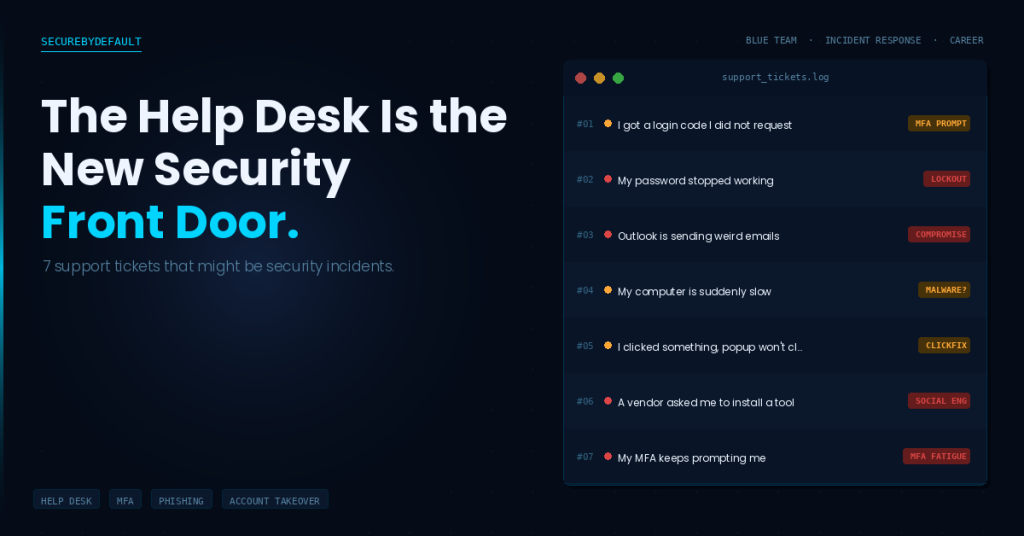
Most security incidents do not start in a SOC. They start in a help desk queue.
Someone calls in because their email is acting strange. Someone submits a ticket because their password stopped working. Someone mentions in passing that they clicked something they probably should not have. At that moment, the support technician is the first person in the organization who has a chance to catch it.
The problem is that most support teams are trained to close tickets, not investigate them. The two goals are not always the same.
I spent years in technical support roles, including handling cloud infrastructure incidents and security-adjacent issues at Akamai. What I noticed is that some of the most important security catches came from someone asking one more question before closing a ticket. Not a deep forensic investigation. Just: “When did this start? Did anything else happen around the same time?”
This post is for support technicians, IT generalists, and anyone who takes the first call when something seems off. Here are seven ticket types that look routine but might be worth a second look.
Ticket 1: “I got a login code I did not request”
What it looks like: The user receives an MFA prompt, a one-time code via SMS or email, or a push notification for an account sign-in they did not initiate.
What it might mean
Someone else is attempting to log in to that account. This is one of the clearest early indicators of a credential compromise. The attacker has the username and password and is now trying to get past MFA. The only reason the user is seeing this prompt is because the attacker reached that step in the login flow.
This can also be a sign of device code phishing, where an attacker tricks a user into entering a legitimate authentication code on a real Microsoft or Google page, handing over a valid session token without ever capturing a password.
Questions to ask
- Which account received the code? (Email, Microsoft 365, banking, VPN, other)
- Did the user click Approve, Deny, or ignore it?
- Has the user recently entered their password on an unfamiliar site or in response to an email?
- Has the user shared their credentials with anyone, including IT?
- Is the user traveling or logging in from a new device or location?
What to document
- Account name and service
- Time and date of the unexpected prompt
- Whether the user approved, denied, or ignored the prompt
- Any recent password resets or credential changes
Ticket 2: “My password stopped working”
What it looks like: The user cannot log in. They are confident the password is correct. No one on the IT side initiated a reset.
What it might mean
An attacker who gained access to the account has changed the password to lock the legitimate user out. This is a common step in account takeover because it buys time before the victim can regain access and revoke the session.
It can also mean the account was included in a credential stuffing attack, where automated tools try leaked username/password combinations at scale until one works.
Questions to ask
- When did it last work?
- Has the user received any unexpected verification emails or security alerts recently?
- Has the user reused this password on any other service?
- Did the user receive any phishing emails in the past 24 to 48 hours?
- Are there other accounts using the same email and password combination?
What to document
- Account name and service
- Approximate time the password stopped working
- Whether a self-service reset was attempted
- Any recent phishing emails or suspicious activity the user noticed
Ticket 3: “Outlook is sending weird emails”
What it looks like: The user is getting replies to emails they never sent. Contacts are reporting receiving strange messages. The sent folder contains emails the user does not recognize.
What it might mean
The account is actively compromised and being used to send phishing or spam. This is especially dangerous because the emails appear to come from a trusted internal address. Recipients are far more likely to click links from a known colleague than from an unknown sender.
Attackers also frequently use compromised email accounts to send Business Email Compromise (BEC) fraud messages, requesting wire transfers, payroll changes, or gift card purchases from finance teams.
Questions to ask
- When did the user or their contacts first notice this?
- What do the sent emails contain? (Links, attachments, requests for action)
- Is there a forwarding rule or delegate access configured on the account?
- Has the user noticed any other unusual account behavior?
What to document
- Examples of the unauthorized emails (subject, recipient, content summary)
- When they appear to have started
- Whether forwarding rules or inbox delegates are present
- The user’s recent login history if accessible
Ticket 4: “My computer is suddenly slow”
What it looks like: The user says everything is running slowly and they have not changed anything. The machine may also be running hot, or the fan is louder than usual.
What it might mean
Malware, especially crypto-mining software, ransomware performing encryption in the background, or a remote access tool that is actively being used, can consume significant CPU and memory. Not every slow machine is an incident. But the question is worth asking, especially if the slowdown was sudden and the user has not installed anything new.
Ransomware in particular often runs quietly in the background for hours before surfacing. By the time the ransom note appears, the damage is done. Catching unusual CPU activity early can sometimes stop it.
Questions to ask
- When did the slowdown start?
- Did the user install anything, open an attachment, or click a link recently?
- Is anything running in Task Manager that looks unfamiliar?
- Are any files behaving strangely? (Renamed, inaccessible, changed extensions)
- Is the network activity unusually high?
What to document
- Onset time and whether it was sudden or gradual
- Any processes in Task Manager the user or tech identified as unfamiliar
- Recent software installs or downloads
- Whether files appear to have been modified or renamed
Ticket 5: “I clicked something and now this popup will not go away”
What it looks like: A persistent browser popup claiming the computer is infected. A fake tech support alert with a phone number. A warning that says the computer is locked and to call Microsoft.
What it might mean
At the low end, this is adware or a browser hijack, annoying but not catastrophic. At the high end, it is a social engineering attack in progress. If the user called the number in the popup, there is a real person on the other end of the line right now trying to convince them to install remote access software and hand over payment details.
The Center for Internet Security also flags ClickFix as a related technique, where fake verification pages convince users to run malicious commands themselves. If the user was prompted to paste something into PowerShell or the Run dialog, treat this as a high-priority escalation.
Questions to ask
- Did the user call any number shown in the popup?
- Did anyone ask them to install anything, give remote access, or provide payment?
- Did they paste or run any commands in PowerShell, Command Prompt, or the Run dialog?
- What site were they on when it appeared?
What to document
- Whether the user called the number or interacted with the popup
- Whether any software was installed or remote access was granted
- Whether any payment was made
- The website where the popup originated if known
Ticket 6: “A vendor asked me to install a remote tool”
What it looks like: The user received a call or email from someone claiming to be a vendor, supplier, or IT support asking them to install a remote access tool like AnyDesk, TeamViewer, or Quick Assist.
What it might mean
Legitimate vendors occasionally use remote tools, but they never cold-call employees and ask them to install software without prior arrangement through official channels. This is a common technique in business email compromise and tech support fraud.
Once a user installs the tool and hands over the access code, the attacker has direct control of the machine and can move through the system, steal credentials, exfiltrate data, or install persistent malware.
Questions to ask
- Did the user initiate this support request, or did the vendor reach out unexpectedly?
- Was the request made through official channels the company normally uses?
- What tool was installed and has the user already granted access?
- What was the vendor claiming to fix or help with?
What to document
- Vendor name and contact method (email address, phone number)
- Tool installed and whether a session was active
- What the caller or sender claimed they needed access for
- Whether the user provided any credentials during the session
Ticket 7: “My MFA keeps prompting me”
What it looks like: The user keeps receiving MFA push notifications or approval requests throughout the day, even when they are not actively logging in to anything.
What it might mean
This is sometimes called MFA fatigue or prompt bombing. An attacker who has the user’s credentials sends repeated authentication requests hoping the user will eventually approve one out of frustration or confusion. It is a legitimate and increasingly common technique, and it has been used in high-profile breaches.
The goal is to wear the user down. Some attackers also call the user pretending to be IT support and say “We are testing your account, please approve the next notification.” The notification arrives immediately after the call and the user approves it thinking it is legitimate.
Questions to ask
- How many prompts has the user received and over what time period?
- Did the user approve any of them?
- Has anyone called the user recently claiming to be from IT or the company?
- Is the user logged in on any new devices or locations?
What to document
- Time and number of unexpected prompts
- Whether any prompts were approved
- Whether the user received any suspicious phone calls around the same time
What Support Teams Should Document
Good documentation is the difference between an incident that gets contained and one that spreads for three weeks before anyone realizes what happened. If you take a ticket that looks security-adjacent, capture the following before you close it.
- Exact time the user first noticed something was wrong
- What the user did immediately before the issue started (clicked, downloaded, visited, received)
- Whether the user interacted with any suspicious request (approved, called, installed, pasted, replied)
- Account names and services involved
- Device name, operating system, and whether it is managed or personal
- Any error messages, popup text, or sender details the user remembers
- A screenshot if possible
Even if the ticket turns out to be nothing, documented information from an initial ticket can be critical context if a related incident surfaces days later.
When to Escalate
A good rule of thumb: if you are not sure whether something is a security incident, document it and let someone who handles security make that call. The cost of a false escalation is a brief conversation. The cost of a missed escalation can be significantly worse.
Escalate immediately when any of the following are true:
- A privileged or administrative account is involved
- The user approved an unexpected MFA prompt
- Remote access was granted to an unknown party
- Commands were run in PowerShell, Terminal, or the Run dialog
- Files appear to have been renamed, encrypted, or are inaccessible
- Unauthorized emails were sent from the user’s account
- The user made a payment or shared financial credentials
- Multiple users are reporting similar issues simultaneously
You do not need to diagnose the incident before escalating. You just need to recognize that something is outside the scope of a standard support ticket and hand it to the right person with as much context as possible.
Quick Reference Checklist for Support Techs
Use this when a ticket feels like it might be more than a standard support issue.
Initial triage
- Ask when the user first noticed the issue
- Ask what they were doing immediately before it started
- Ask whether they clicked, downloaded, installed, pasted, or called anything
- Check whether any account credentials may have been involved
Account security
- Confirm whether the user approved any unexpected MFA prompt
- Check for unexpected password changes
- Look for inbox forwarding rules or delegates if email is involved
- Check for recently added OAuth apps or authorized applications
- Review recent sign-in history if accessible
Device security
- Note any unfamiliar processes in Task Manager
- Check for recently installed software the user did not deliberately install
- Look for files with changed or unusual extensions
- Confirm whether remote access software is installed and whether a session is active
Escalation triggers
- Privileged account involved
- MFA prompt was approved unexpectedly
- Remote access was granted to an unknown party
- Commands were run in PowerShell or Terminal
- Files appear encrypted or inaccessible
- Unauthorized emails were sent from the account
- Payment or financial credentials were shared
- Multiple users reporting similar issues
Final thoughts
Support technicians are often the first people to hear about a security problem. Not because they are looking for incidents, but because users call them when something feels wrong. That is a real advantage if the team knows what to ask.
You do not need deep forensic skills to make a difference. You need curiosity, good documentation habits, and the confidence to escalate when something feels off. The security team can handle the investigation. You just have to make sure the right information reaches them before the trail goes cold.
If you want to go deeper on the basics, the SecureByDefault 25-Point Security Checklist covers the controls that would stop most of what is described in this post: MFA, phishing training, backup testing, and verified out-of-band communication for sensitive requests.
Get the security checklist most
businesses skip.
A free 25-point audit covering the exact gaps attackers hit first. Engineer-built, no jargon. Plus one practical security breakdown every Tuesday. No fluff, no fear-mongering.
Get the Free Checklist →Free on signup · Unsubscribe anytime · ~1 email per week