
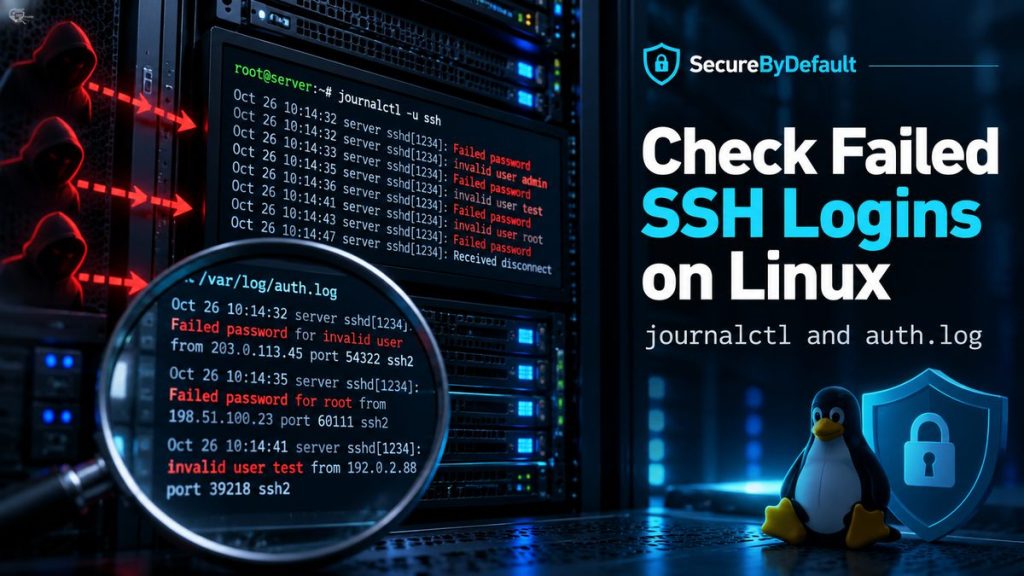
You ran the command every tutorial tells you to run:
grep "Failed password" /var/log/auth.logAnd nothing came back. No error, no results, just a fresh prompt.
That’s an easy place to decide something is broken, or that your server is suspiciously quiet. Usually it’s neither. Linux can keep SSH logs in more than one place, and you may simply be looking in the wrong one.
This guide covers where SSH logs live, how to read a failed-login line, how to count which addresses and usernames show up most, and how to check whether anything actually got in. It’s the reference version of a story I wrote up in the newsletter, where I did this on a real server.
Where SSH logs live on Linux
There are two main places to look.
1. The systemd journal. Most modern distributions that use systemd keep logs in the journal, and you read them with journalctl. This is usually the first place to check.
2. Log files such as /var/log/auth.log. On Debian and Ubuntu, authentication messages are written to /var/log/auth.log by a logging service called rsyslog. On RHEL-family systems the equivalent file is usually /var/log/secure.
A system can have both, only one, or one that has only just started collecting. To see what you have:
ls -l /var/log/auth.log
systemctl status rsyslog
If the file doesn’t exist, or rsyslog isn’t running, the journal is where your history is. If the file exists but is small, it may only cover the time since rsyslog started.
On my own server, auth.log existed but was tiny, because rsyslog had only recently started. The older records were all in the journal. On a stock Ubuntu install I tested afterward, the file existed with content, so this varies from machine to machine. That’s exactly why it’s worth checking rather than assuming.
Find the SSH service name
The journal is organized by service. The SSH server’s name depends on the distribution:
- Debian and Ubuntu: ssh
- Many others, including RHEL-family systems: sshd
If you’re not sure, ask systemd:
systemctl list-units --type=service | grep -i sshThen read that service’s logs:
journalctl -u ssh-u means “this unit,” which here is the SSH service. On a system that uses sshd, run journalctl -u sshd.
You may need permission
Reading the full journal requires sudo, or membership in the adm or systemd-journal group. Without it, a normal user gets this hint and no results:
You are currently not seeing messages from other users and the system. Users in groups ‘adm’, ‘systemd-journal’ can see all messages.
— No entries —
If you see that permissions hint followed by — No entries —, rerun the command with sudo before concluding the log is empty. — No entries — by itself can also simply mean there are no matching records.
Read one failed-login line
Here’s the format of a failed SSH password attempt. The address below is from a range reserved for documentation, not a real one:
May 19 18:09:08 localhost sshd[2379971]: Failed password for root from 203.0.113.45 port 45232 ssh2Left to right:
| Part | Meaning |
|---|---|
| May 19 18:09:08 | when it happened |
| localhost | the machine’s hostname |
| sshd[2379971] | the program that wrote it, and its process ID |
| Failed password for root | what happened, and which account |
| from 203.0.113.45 port 45232 | where the attempt came from |
| ssh2 | the SSH protocol version |
Two variations are worth recognizing:
- Failed password for root means a password authentication attempt targeted the root account and failed. By itself, that line does not tell you why authentication failed or whether password login for root is actually allowed.
- Failed password for invalid user admin means that username doesn’t exist on the server at all. Automated scanners guess lots of names, so you’ll see plenty of these.
You’ll also see lines like Invalid user … from … and Connection closed by … [preauth]. The preauth part means the connection closed before authentication finished.
Check how many failed logins you have
A journal can be huge, and a command that reads all of it can take a long time. Limit the window and save the result to a file once, then search the file:
sudo journalctl -u ssh --no-pager --since "7 days ago" > ~/ssh7.log
wc -l ~/ssh7.log
Then count the failures:
grep -c "Failed password" ~/ssh7.loggrep -c prints the number of matching lines.
Some other time filters you can use with –since and –until: “today”, “yesterday”, “2 hours ago”, or a full timestamp such as “2026-10-01 12:00:00”.
To watch new attempts as they arrive, follow the log live (press Ctrl+C to stop):
sudo journalctl -u ssh -fCount which addresses and usernames show up most
Raw counts only tell you so much. The useful question is who, and which accounts they’re trying.
Which addresses?
grep "Failed password" ~/ssh7.log | awk '{for(i=1;i<=NF;i++) if($i=="from") print $(i+1)}' | sort | uniq -c | sort -rn | headWhich usernames?
grep "Failed password" ~/ssh7.log | sed -E 's/.*for (invalid user )?([^ ]+) from.*/\2/' | sort | uniq -c | sort -rn | headBoth end with the same pattern, which is worth memorizing:
sort | uniq -c | sort -rn | headIt means: sort the lines, count the repeats, then show the most common first. You can put it after any command that prints one item per line.
On the server I checked, seven different addresses accounted for 53 failed passwords in a week, and the username root was tried more than 4 in 10 times. That’s one server over one week. It tells you what the pattern looks like, not what’s normal for your server.
Did anyone actually get in?
Failed logins are noise. A successful login you don’t recognize is the thing that matters. Successful logins are recorded with the word Accepted:
grep "Accepted" ~/ssh7.logYou’ll see lines such as:
Accepted publickey for alice from 203.0.113.45 port 52437 ssh2: ED25519 SHA256:...
Accepted password for alice from 203.0.113.45 port 52437 ssh2
For each one, ask three things: is that my account, is that my address, and is that a time I was logged in?
If you find an Accepted login you can’t explain, treat the system as potentially compromised. Preserve the logs, work from a trusted session or provider console, isolate the system if appropriate, and rotate affected credentials from a trusted device. For a sensitive or production machine, rebuilding from a known-good state may be the safest option.
Check what your SSH server actually allows
Seeing Failed password for root in your logs means password logins for root are being attempted. It’s worth checking whether they’re even allowed:
sudo sshd -T | grep -i -E "permitrootlogin|passwordauthentication"sshd -T validates the configuration and prints the effective settings SSH derives after combining its configuration files. It is a configuration check, not proof by itself that a running daemon has reloaded a newly edited file.
Don’t assume you know the answer. OpenSSH’s own upstream default for PermitRootLogin is prohibit-password, which blocks password logins for root, and PasswordAuthentication defaults to yes. But one fresh Ubuntu instance I checked printed this:
permitrootlogin yes
passwordauthentication yes
A new server isn’t automatically a hardened one. This was one test instance, not a universal Ubuntu default. Your provider image and Ubuntu version can change what ships enabled, so look rather than assume. Changing these settings safely is a topic of its own, and you should know how to test a change and keep a second session open before you touch them, or you can lock yourself out. I cover that in the next newsletter issue.
Where to practice: a real server
You can learn everything above for free on a virtual machine on your own computer. A real server on the internet teaches you things a VM doesn’t, like how quickly the knocking starts.
When I want a VPS to learn on, or a production server, my preference is Akamai Cloud (formerly Linode) over AWS. It’s simpler to get started with, the pricing has been easier for me to follow, the support has been good in my experience, and the documentation is excellent. It includes a guide on setting up and securing a new server, which is a good next read once you can see what’s knocking.
AWS is a strong platform and worth learning too, especially if you’re aiming at cloud roles. This is just where I’d start a beginner.
Frequently asked questions
Where are SSH logs on Linux? Usually in the systemd journal (read with journalctl -u ssh, or -u sshd on some systems) and, on Debian and Ubuntu, also in /var/log/auth.log if rsyslog is running. RHEL-family systems typically use /var/log/secure.
Why is my auth.log empty or missing? The log service that writes it may not be installed or may have only just started. Check systemctl status rsyslog and look in the journal instead.
Why does journalctl show “No entries”? If you also see the permissions hint about not seeing messages from other users and the system, rerun the command with sudo. Without that hint, — No entries — may simply mean no matching records were found for that query.
Is a failed SSH login a sign I’ve been hacked? No. A failed login means someone tried and didn’t get in. A successful login you don’t recognize is what needs a response.
How do I see only successful SSH logins? Search for Accepted, for example sudo journalctl -u ssh –no-pager –since “7 days ago” | grep “Accepted”.
Want more hands-on projects like this?
I share practical Linux, AWS, troubleshooting, cloud, and cybersecurity lessons every Tuesday, along with remote tech opportunities and career-focused resources.
Join the newsletter + get the free Linux Starter Kit